Adding Family Members to a profile
This page includes instructions for adding family members (or other relationships) to your profile on both a web browser and on the SwimGuru mobile app. Each method includes step-by-step pictures. Please note that only SwimGuru staff can establish relationships between existing profiles. Please reach out to us if you have more than 2 profiles on your account.
On a web browser:
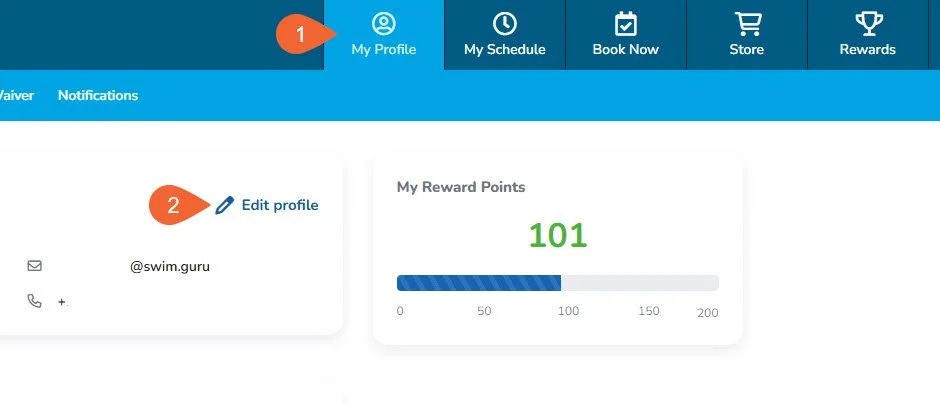
After your profile is set up, with all of your information filled out (especially email, phone number, and credit card), click the My Profile button in the top right of the menu.
Click “Edit Profile.”
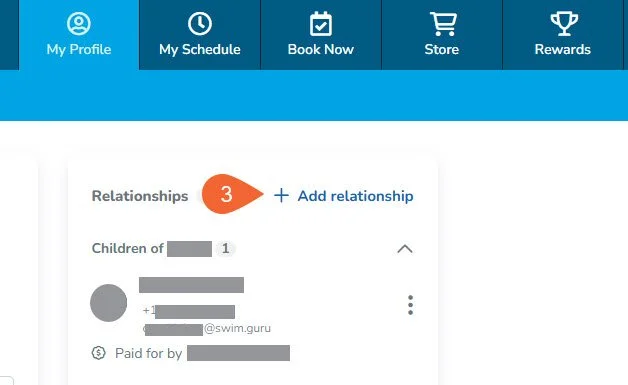
On the relationships card, click “Add relationship.”
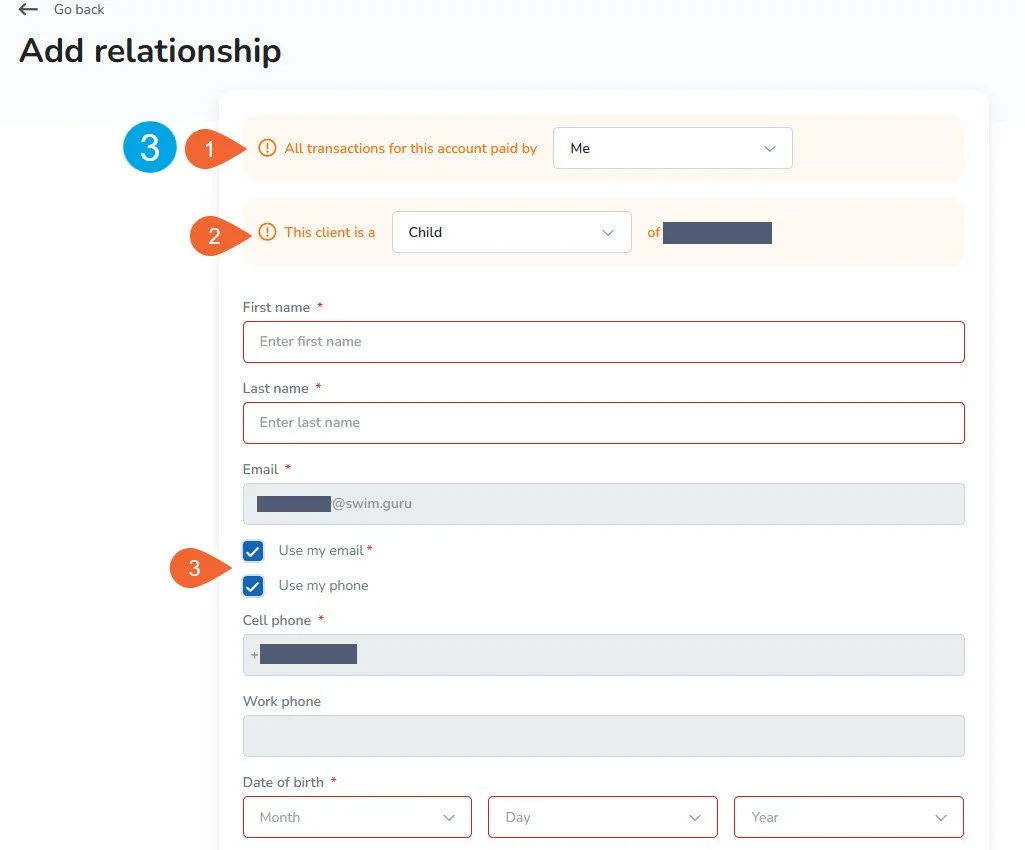
In the “All transactions for this account paid by” field, select who will be paying for this person’s transactions. Most often, this is the caregiver with the primary account, or “Me."
In the “This client is a [relationship] of [your name]” field, select what type of relationship you have with this person.
Enter the family member’s information in the required fields. They are marked with a red asterisk. Check the boxes to “Use my email” and “Use my phone."
At the bottom of the form, click the green “Add relationship” button.
If you have more than one relationship to add, go back to the primary profile (top right corner, select name) and add them using the steps above. This will ensure all family members are directly linked to the primary profile.
If you would like to add another parent or caregiver to the account, follow the steps above but do not check the “Use my email” and “Use my phone” boxes. You can add their contact information and they will be able to log into WellnessLiving.
In order to navigate between all profiles easily, please reach out to support@swim.guru or fill out our Account Request form to request a staff member to connect all family members to each other.
On the Mobile SwimGuru App:
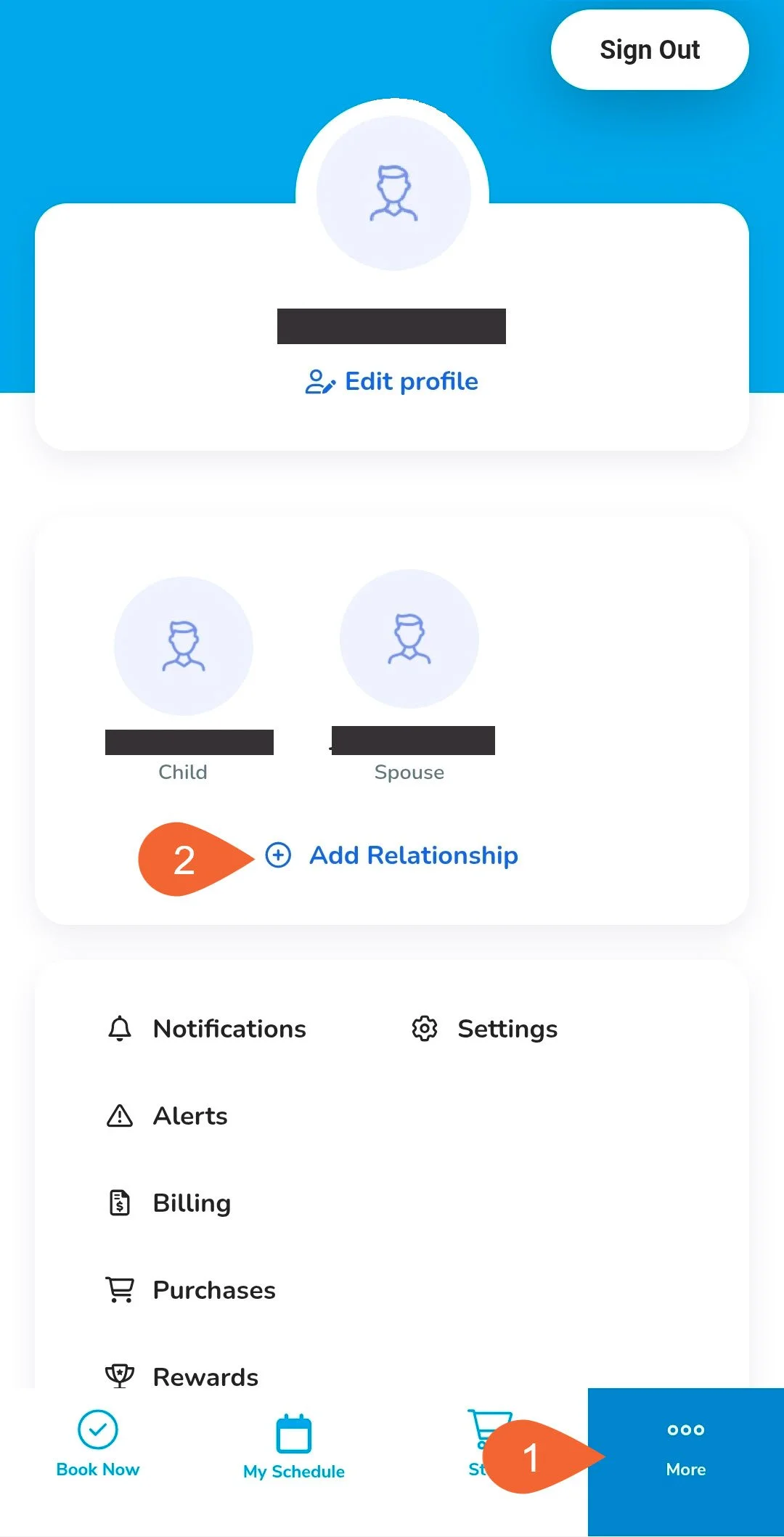
After your profile is set up, with all of your information filled out (especially email, phone number, and credit card), tap the “More (…)” button on the bottom right.
Tap “+ Add Relationship.”
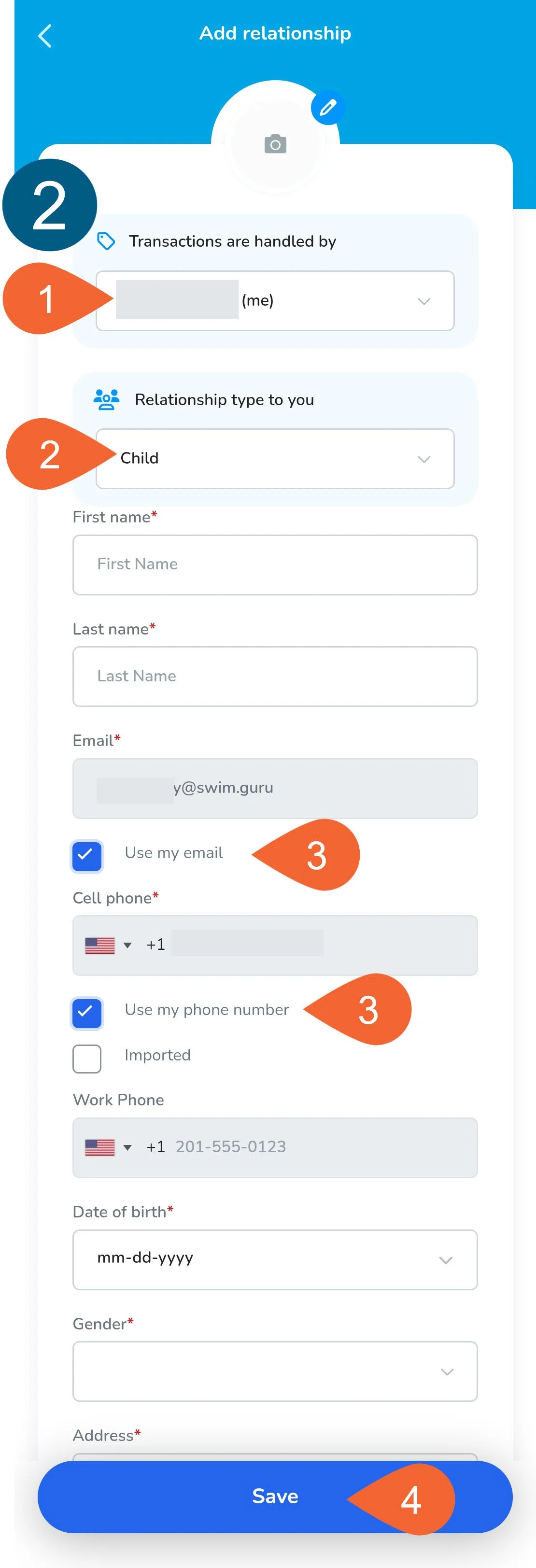
In the “Transactions are handled by” field, select who will be paying for this person’s transactions. Most often, this is the caregiver with the primary account, or “Me."
In the “Relationship type to you” field, select what type of relationship you have with this person.
Enter the family member’s information in the required fields. They are marked with a red asterisk. Check the boxes to “Use my email” and “Use my phone."
When you’ve completed the form, click the “Save” button.
If you have more than one relationship to add, go back to the primary profile (“More…” button > tap name > tap “Sign in”) and add them using the steps above. This will ensure all family members are directly linked to the primary profile.
If you would like to add another parent or caregiver to the account, follow the steps above but do not check the “Use my email” and “Use my phone” boxes. You can add their contact information and they will be able to log into WellnessLiving.
In order to navigate between all profiles easily, please reach out to support@swim.guru or fill out our Account Request form to request a staff member to connect all family members to each other.