Rescheduling Private Lessons
This page includes instructions for rescheduling private lessons for both a web browser and on the SwimGuru mobile app. Each method includes step-by-step pictures. This page does not include information about Group Lessons.
Things to know:
WellnessLiving doesn’t have a “reschedule” function at the moment, but it is a highly requested feature and is on their future road map. Currently, you can “reschedule” by cancelling the lesson and booking a new one. When a lesson is cancelled outside of our “late cancel” window (more than 24 hours in advance) the credit is instantly returned to your account. There is no waiting necessary before rebooking using that credit.
Same-day reschedule: If you found a time slot on the same day that works better for you and you are within the 24-hour cancellation period, contact our support team (support@swim.guru or 206-200-9449) or reach out directly to your coach. We can move the lesson to the better time slot for you, with no loss of credits. Alternatively, if you have extra credits, you can “late cancel” the one and book the desired time using another credit. Reach out to support@swim.guru with the details of both appointments and we can return the lost credit to your account.
Note about credits: if you have multiple packages of the same credit type (for example, several Continuing Child credits) it may not use the exact credit that was cancelled. The system will default to use the oldest available credit to pay for the lesson.
Rescheduling on a web browser:
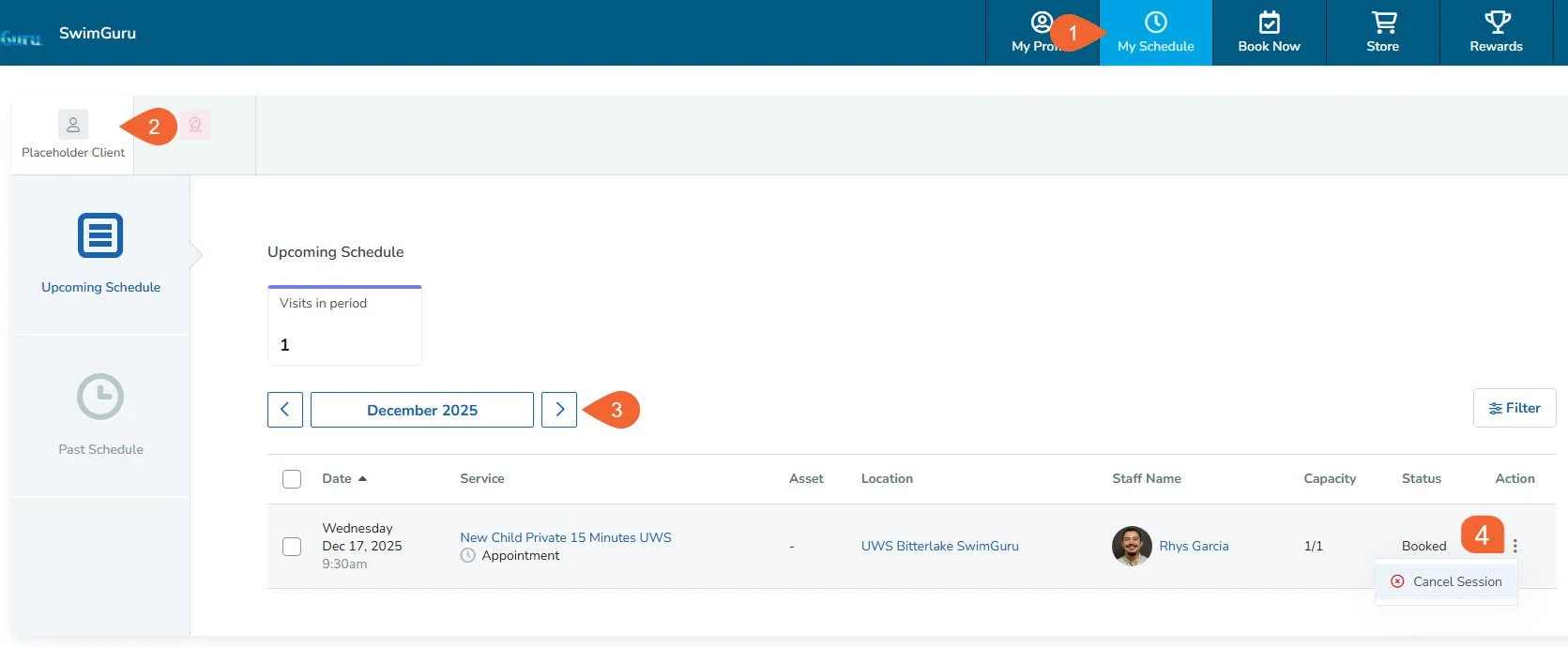
Click the "My Schedule" tab at the top.
In the center banner, choose the name of the student whose lesson needs to be rescheduled.
Find the lesson to rebook by using the calendar navigation buttons. The view defaults to the current month.
Under the "Action" column are 3 dots next to each lesson. Click the dots then click "Cancel session" and follow the prompts.
Go to the "Book Now" tab in the top ribbon to search for a new lesson time, coach, or location. You will need to book the same lesson type (i.e. "New" or "Continuing") as the one you had cancelled to use the same credit. See “Scheduling Private Lessons” for detailed instructions.
Rescheduling using the mobile app:
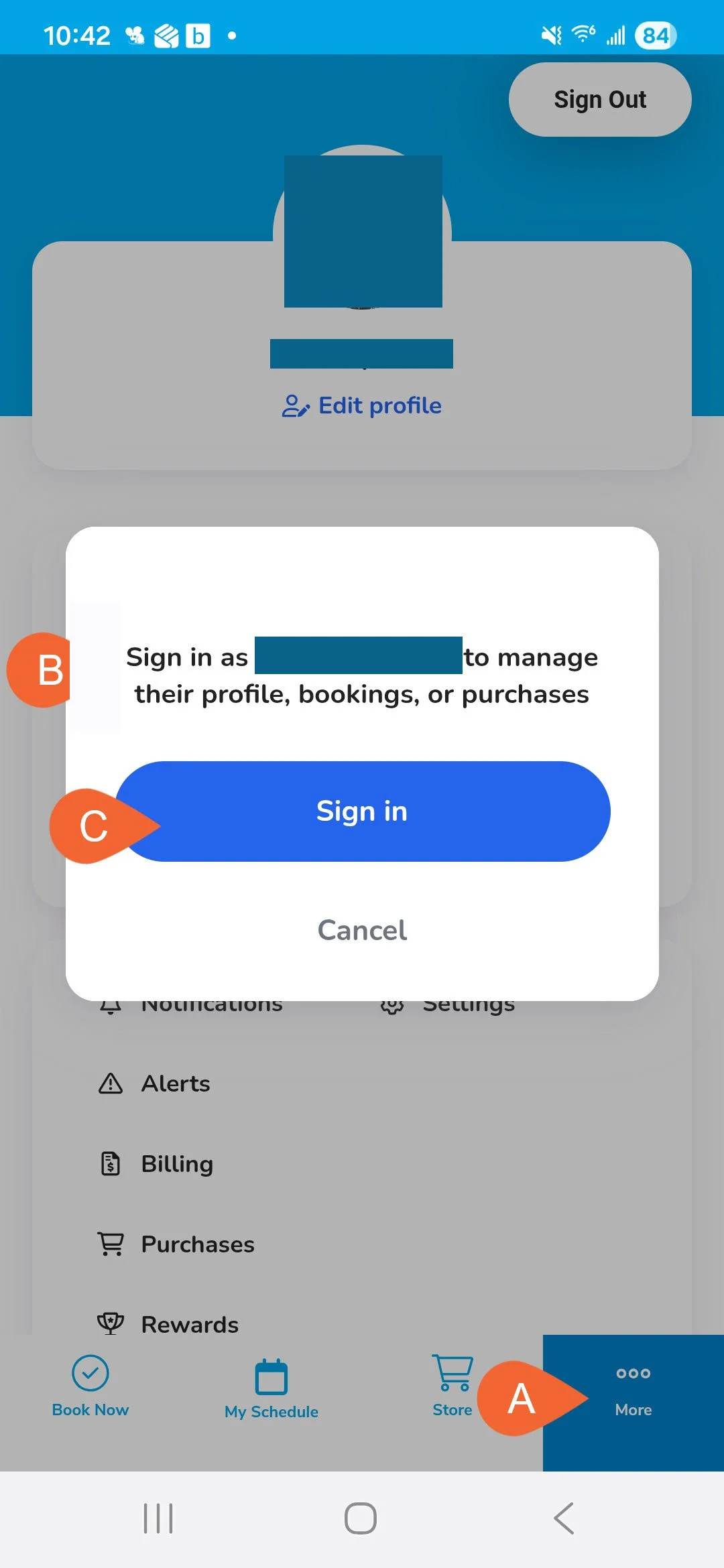
Tap the "More" button on the bottom right and choose the student whose schedule you need to change. Tap "Sign in" to access their profile.
Tap “My Schedule.”
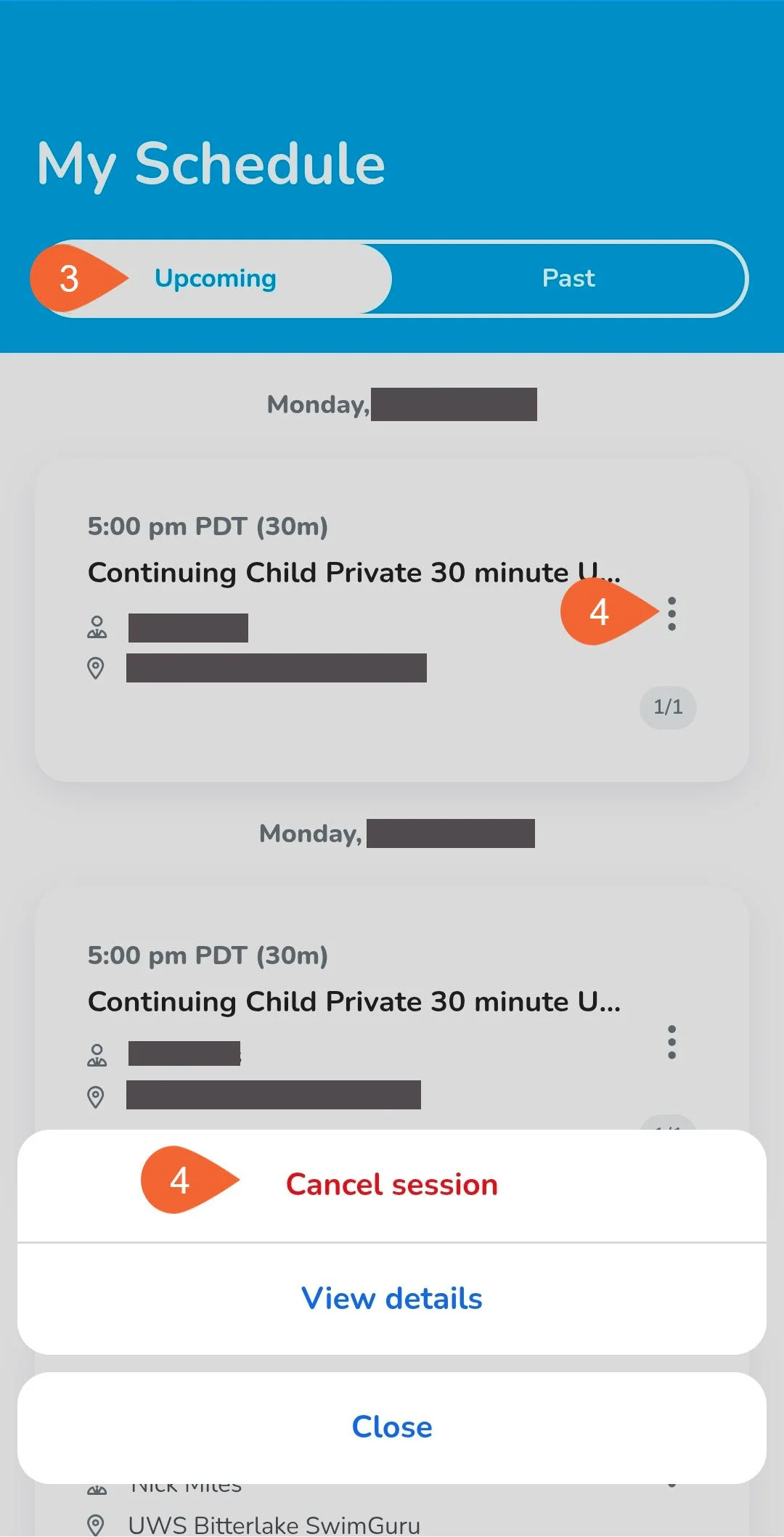
Find the lesson to rebook by scrolling on the page labelled "Upcoming."
On the lesson you need to rebook, tap the 3 dots on the right, then "Cancel session" and follow the prompts.
Tap "Book Now" to search for a new lesson time, coach, or location. You will need to book the same lesson type (i.e. "New" or "Continuing") as the one you had cancelled to use the same credit. See “Scheduling Private Lessons” for detailed instructions.