Scheduling Private Lessons
This page includes instructions for booking private lessons for both a web browser and on the SwimGuru mobile app. Each method includes step-by-step pictures. Booking Group Lessons is not included on this page.
What information do you need when booking a private lesson?
Which swimmer you are booking for;
What type of lesson credits they have available;
Which pool you would like to book lessons at; and
Which coach you might prefer.
Things to note about the system prior to booking:
There are multiple ways to select your service. The most important thing to keep in mind while booking is what type of lesson credits you have available for the swimmer. Credits can only be used toward the lesson type with which they align. For example, “New Child Starter Package” credits can only be used to book “New Child” lessons.
Appointment types are restricted by age. Only swimmers under the age of 18 can be booked in a Child lesson and swimmers 18 and older can only book Adult lessons.
You can have two or more tabs on your browser open to view multiple pools at once. This can come in handy if you’re open to swimming at multiple pools and need to view multiple schedules at once.
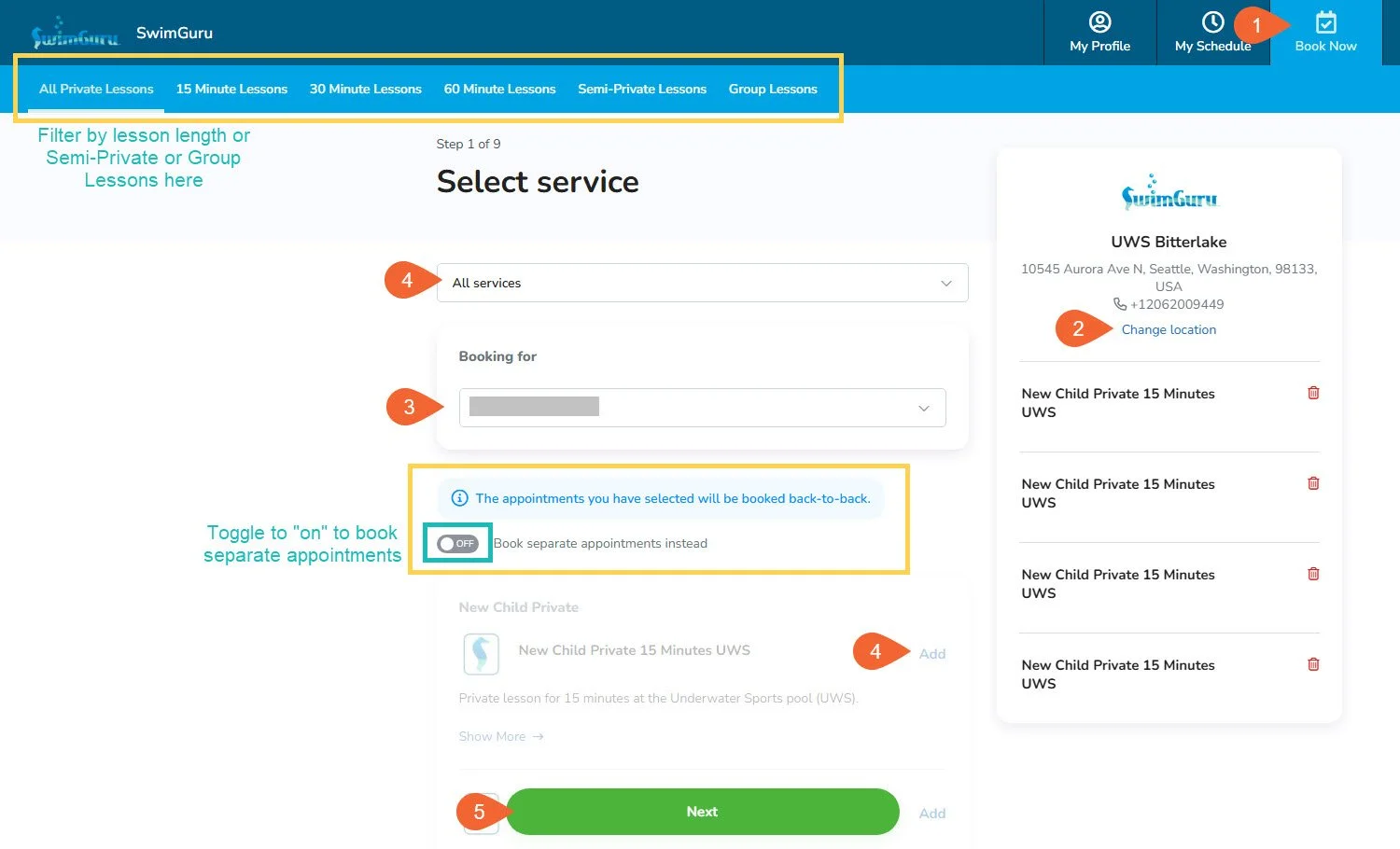
*Navigation and filters for Services on the Book Now page: by default, you will see all lesson types available, even if the swimmer you are booking for does not have that type of credit. To reduce the number of options you see you can choose to either select an option from the light blue ribbon or select a service from the drop down menu.
We book in 15-minute increments. If you’ve chosen a lesson type that is longer than 15 minutes, the system will only show you start times that can accommodate that length.
Semi-private lessons must be booked together and coordinated by the families. If you would like assistance finding a good fit for swimmers, talk to your coach.
How to book on a web browser:
Click on the “Book Now” tab in the top ribbon.
Select the location that you would like to book a lesson for. You may only search and book for one location at a time. See notes above about booking at multiple pools.
Choose the swimmer in the “Booking for” dropdown menu.
Choose your service* and click “Add” to start the booking process.
You may choose to add up to four (4) lessons at one time. You will see a line pop up saying that these will be booked back-to-back. You can change the toggle to book individual lessons instead.
When you have selected up to 4 services, click Next. The system will then walk you through the booking process for each lesson, one at a time, to completion.
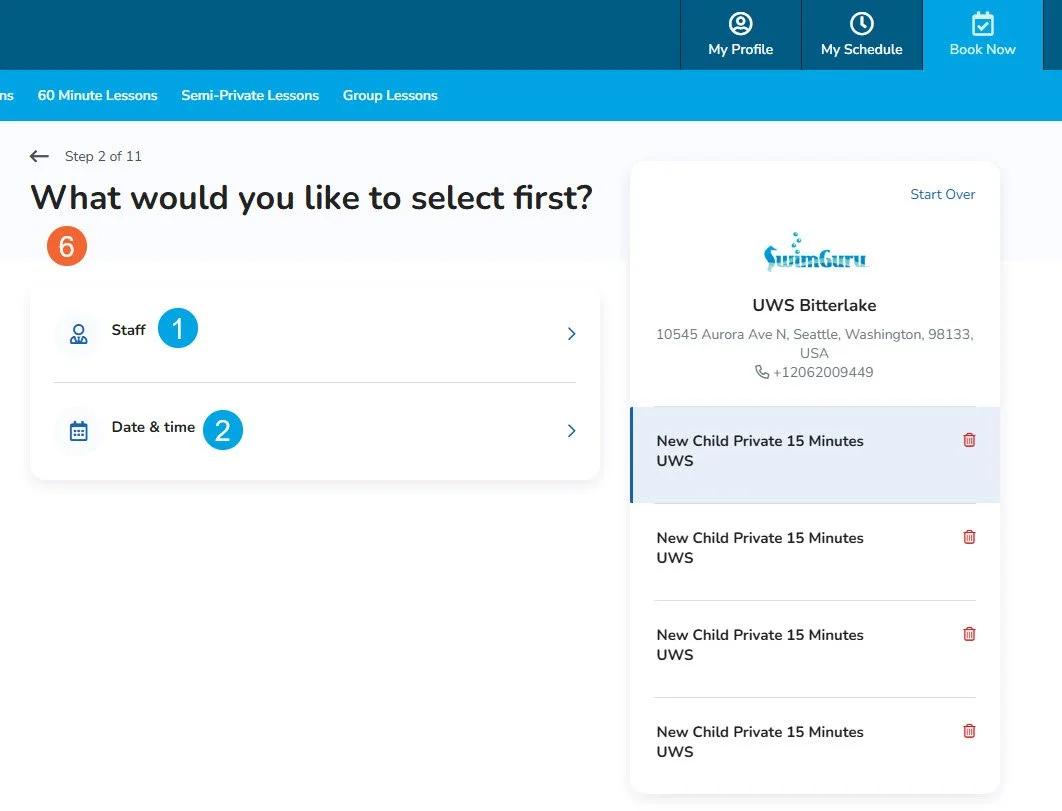
When asked, “What would you like to select first?”
Staff will show you that coach’s availability at the selected pool.
Date & Time will have you choose your preferred lesson day and time, regardless of coach. If two or more are available at that location on that date and time, you will then be prompted to choose which coach to schedule your lesson with.
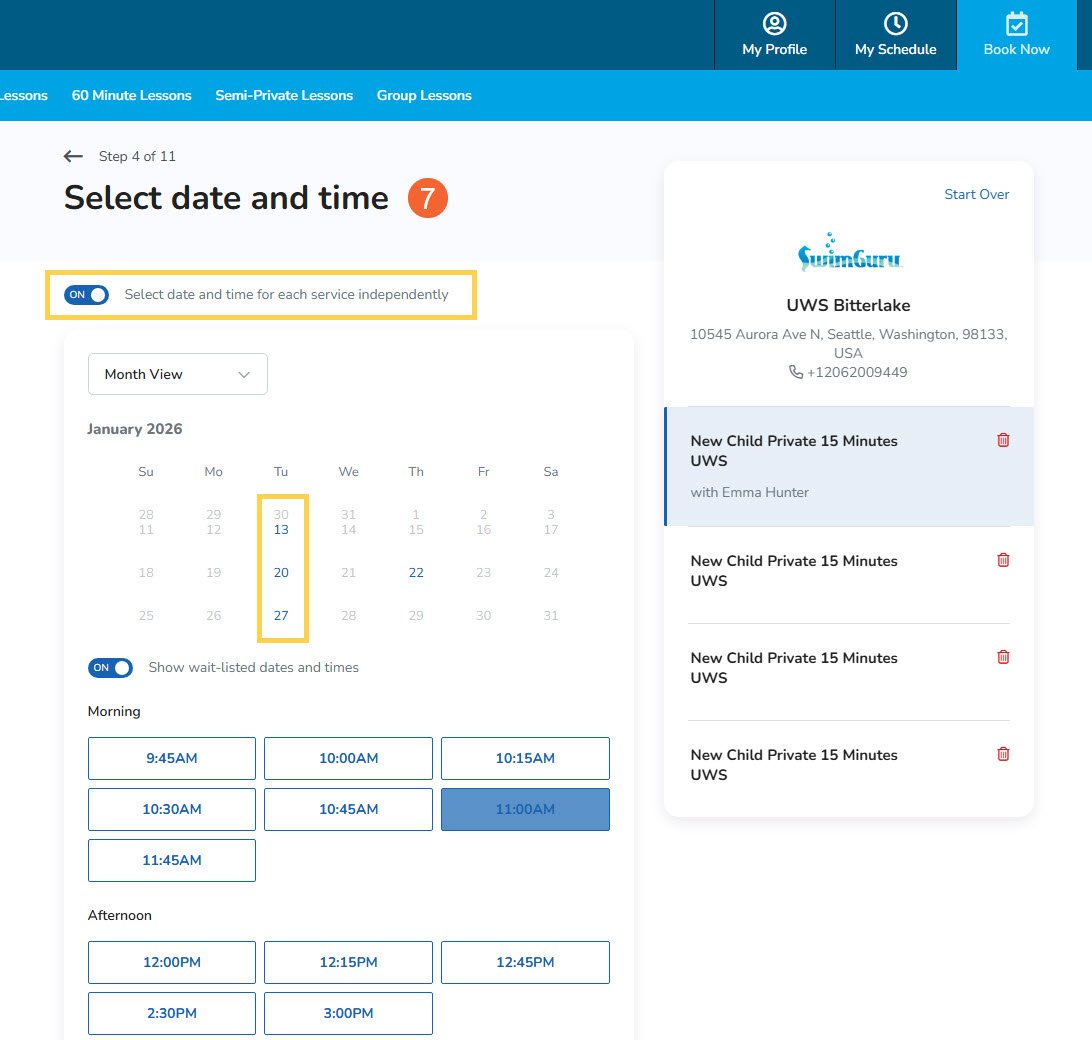
If you have more than one service to schedule, you will have to toggle the switch to choose different dates/times for each lesson.
Next, you will be shown a calendar, which defaults to a month view. The dates with any availability will show up as blue. Click on one to see the available start times for your selected lesson. Choose a start time for your lesson.
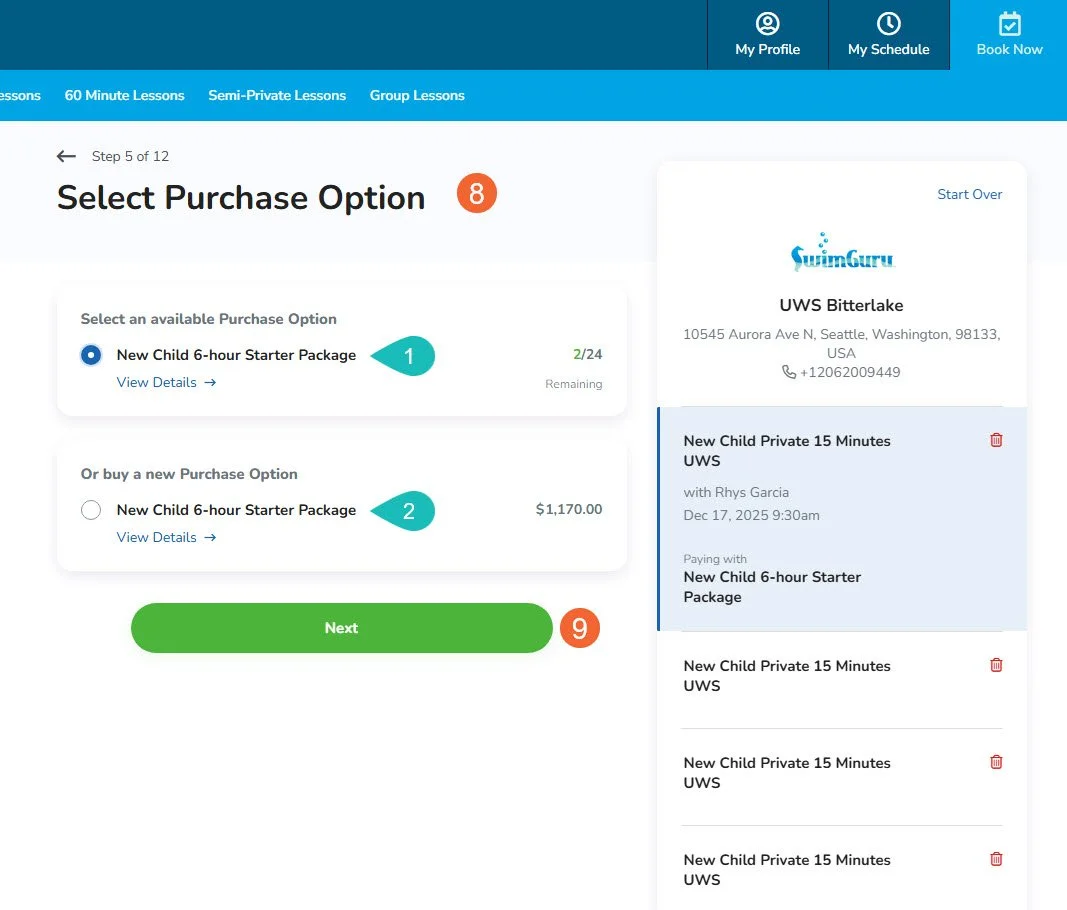
Applying credits to the lesson (Select Purchase Option):
If that swimmer has available, matching credits for that service, it will default to using the available credits. You may also purchase a new package.
If the swimmer does not have available, matching credits for that service, you will be prompted to choose a Purchase Option to buy. Upon completing the booking, this will charge your credit card and buy credits that will be applied to this lesson.
Click Next. If you had multiple lessons selected, follow steps 5-7 to complete the booking process for each one. When all lessons have a coach and time, the green button will say “Complete Booking.”
Booking on the mobile app:
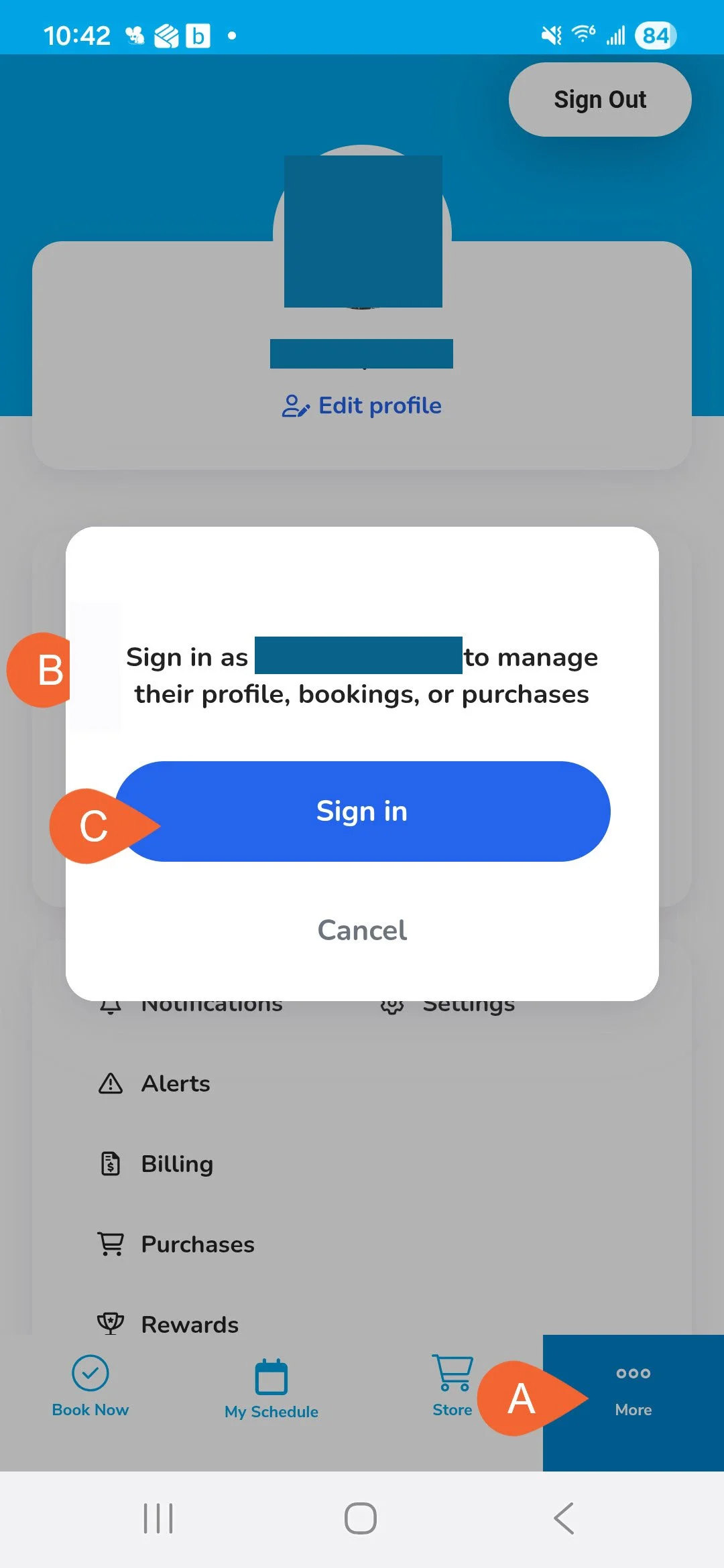
Choose the profile of the swimmer who needs credits by tapping on “More…” on the bottom right, then tapping on the profile of the swimmer, then “Sign in.”
If you can’t see your whole family’s names here, fill out our Account Request form to have a staff member connect everyone together! It makes navigating between profiles much faster.
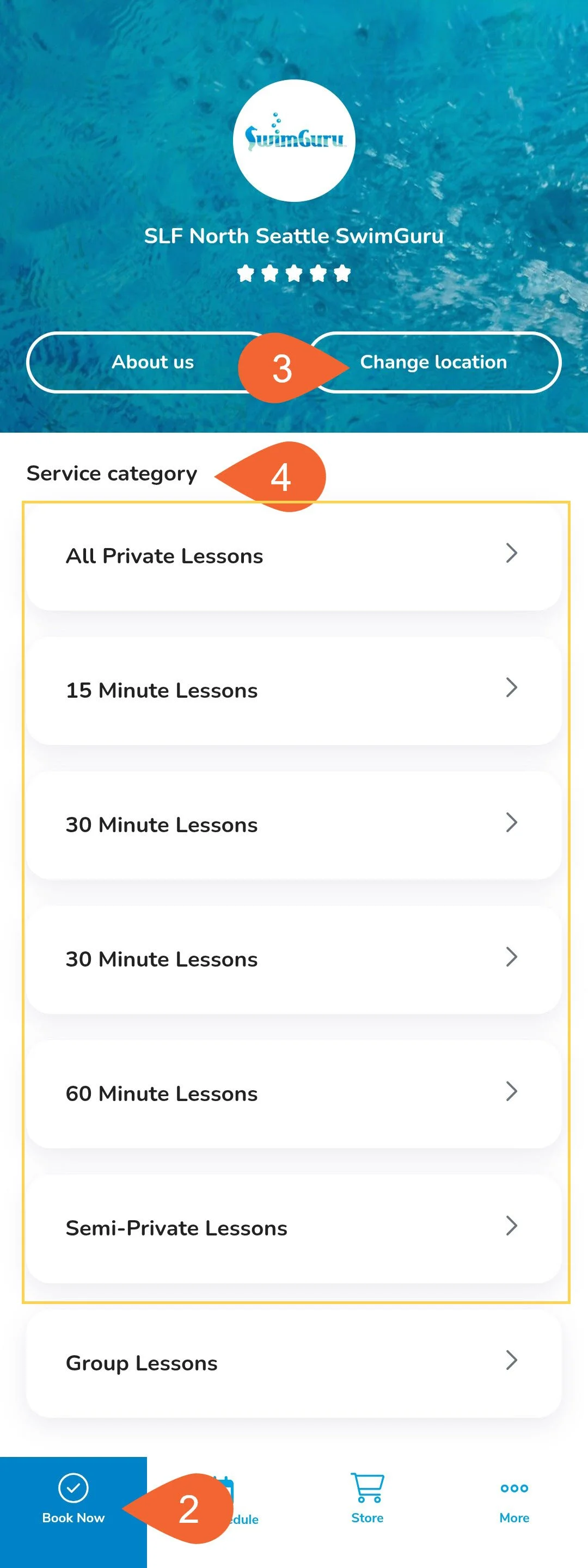
Tap the “Book Now” tab on the bottom left.
Select your desired location at the top.
Start to choose your Service category by selecting “all” or by choosing your desired lesson length.
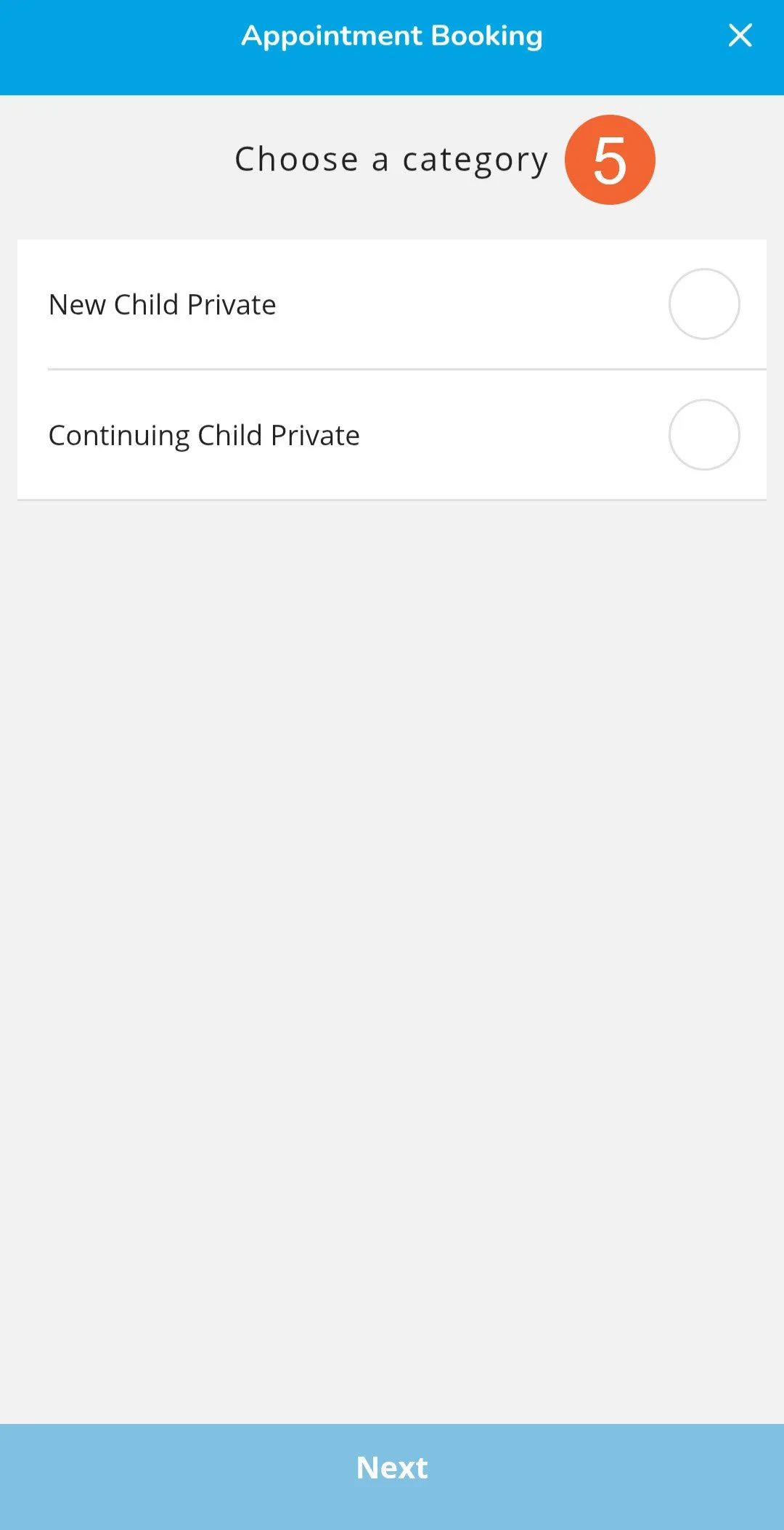
Select the category that matches the credits you want to use. If you’re using New Child credits, choose “New Child Private” and so on. Tap Next.
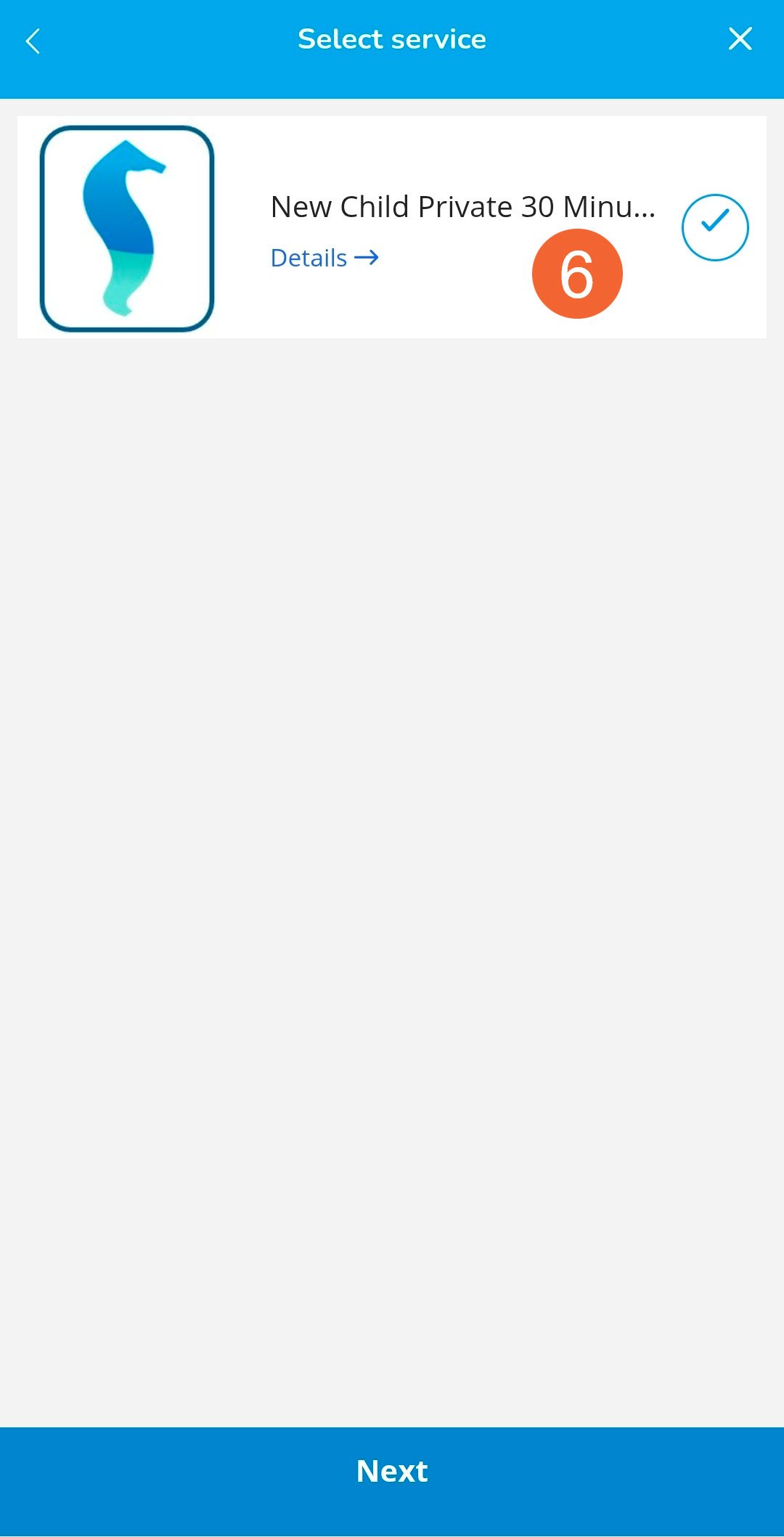
Tap the category again to confirm and then tap Next.
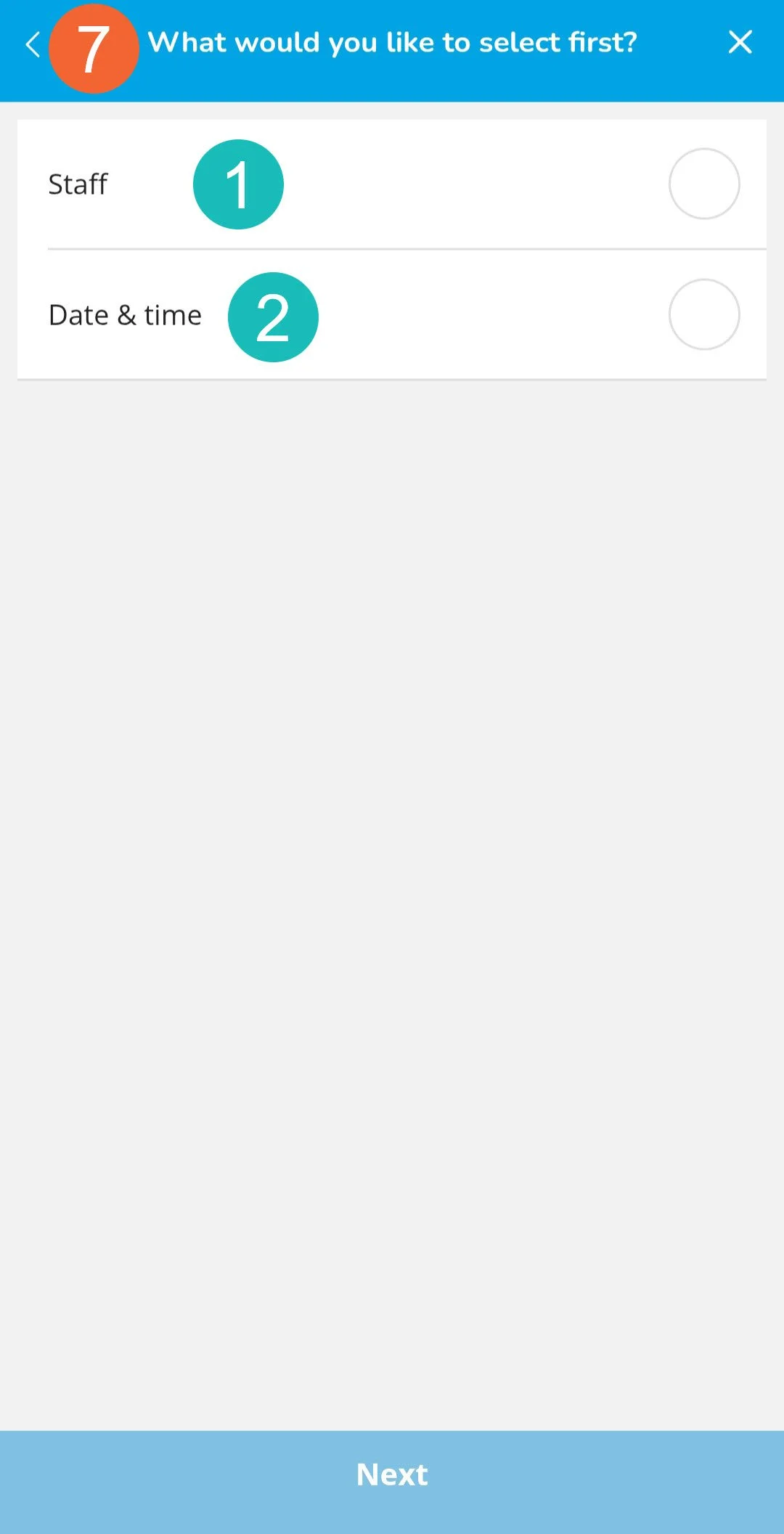
When asked, “What would you like to select first?”
Staff will show you that coach’s availability at the selected pool.
Date & Time will have you choose your preferred lesson day and time, regardless of coach. If two or more are available at that location on that date and time, you will then be prompted to choose which coach to schedule your lesson with.
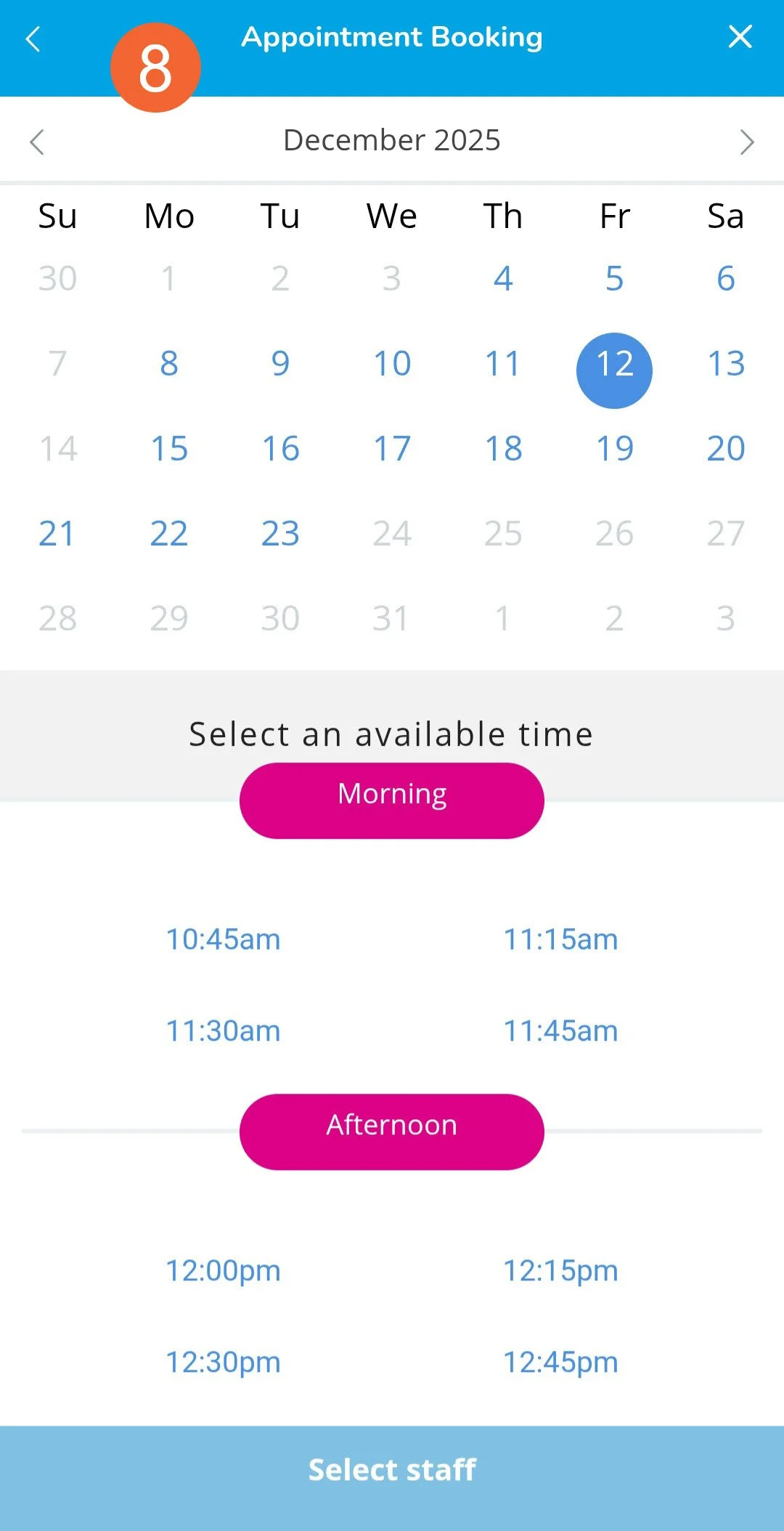
Next, you will be shown a calendar, which defaults to a month view. The dates with any availability will show up as blue. Tap on one to see the available start times for your selected lesson. Choose a start time for your lesson. Tap Next.
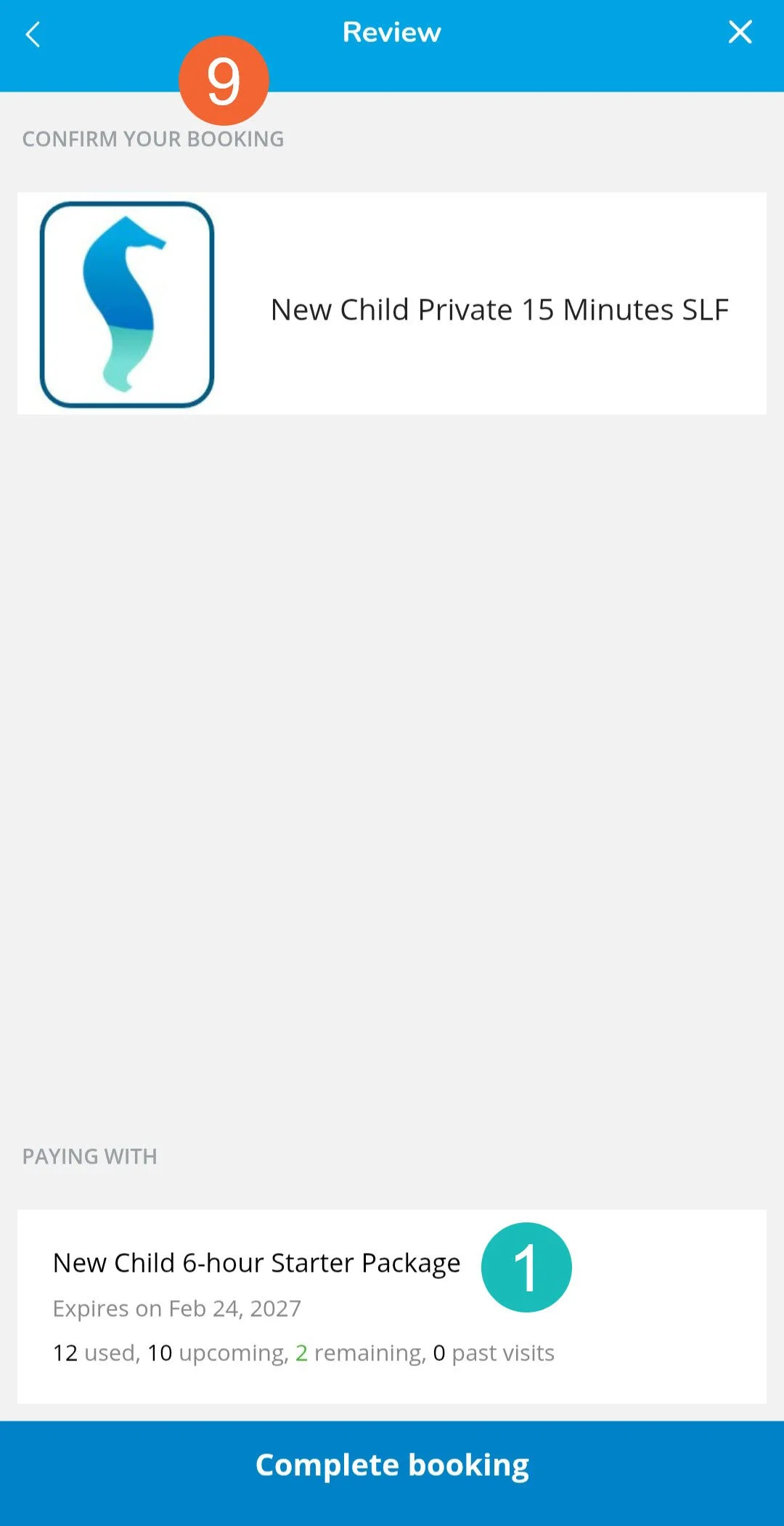
Review page:
If that swimmer has available, matching credits for that service, it will default to using the available credits. Tap “Complete Booking” to finish booking the lesson.
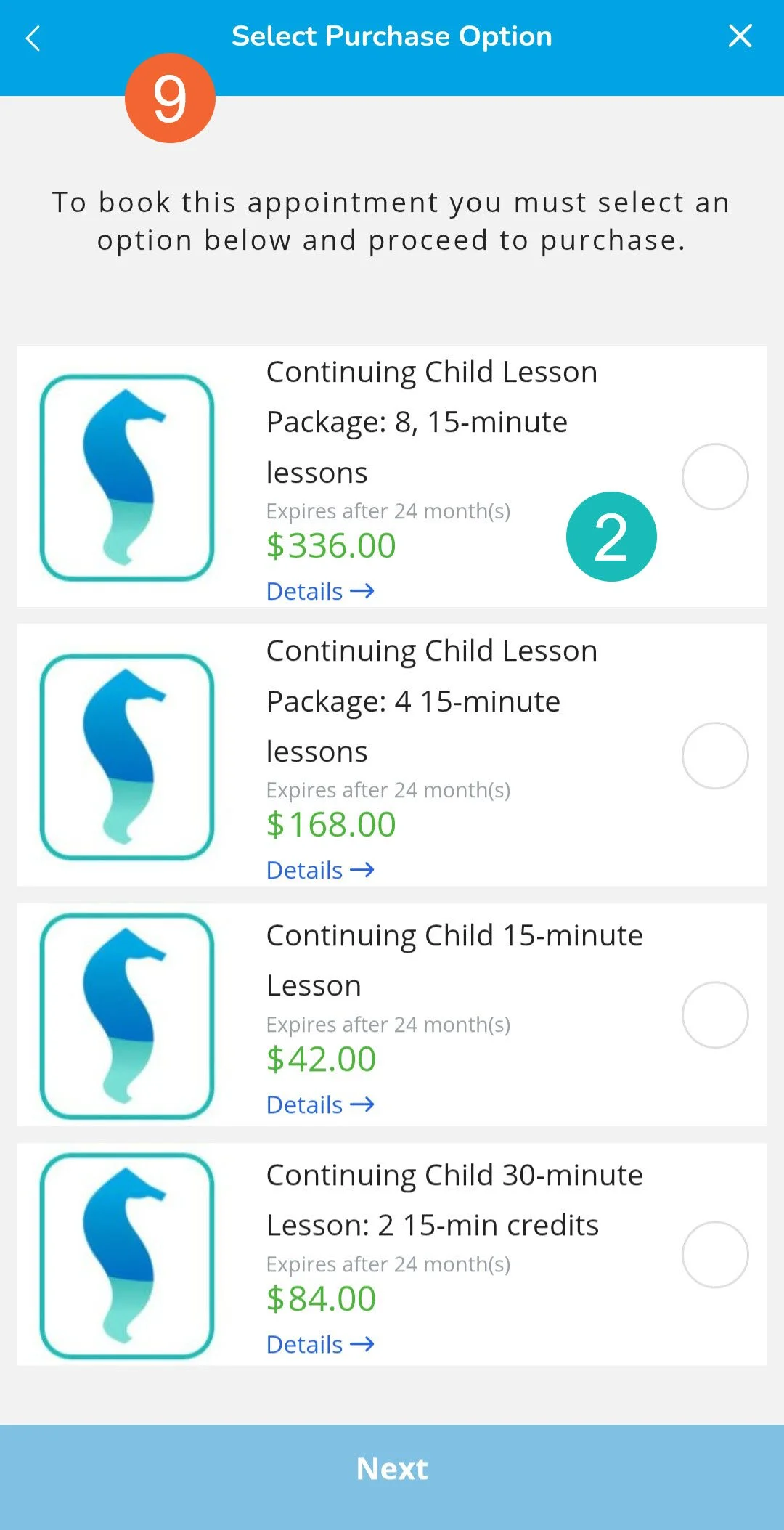
If the swimmer does not have available, matching credits for that service, you will be prompted to choose a Purchase Option to buy. Tap one to select and then tap Next. Confirm your booking by reviewing the lesson type and purchase summary, then tap Checkout.